
Connecting to Physics file servers from macOS
The Physics file servers either run Windows, Linux or Apple operating systems for Home and Group areas. File servers can only be access via the SMB protocol. If you are not sure which file server your home area is on email itsupport@physics.ox.ac.uk
The easiest way to connect to the file servers remotely is to create a VPN or SSH connection to the department. Once you have connected to the department you can connect directly to your home directory via the following methods:
How to connect to file servers in macOS
How to connect via the Graphical Interface
- In Finder either click "Go" > "Connect To" from the menu bar or press "cmd + K"
- In the server address field of the window that appears type the name of the file server and the share e.g. smb://physics.ox.ac.uk/dfs/Users/
- You will then be asked to enter your username and password.
to unmount the file server either drag the icon into the trash to eject it or highlight it and press "cmd +E"
How to connect via the Command Line
- Create a mount point where you want the file server mounted
mkdir /Volumes/username - Then mount the directory using the mount command, for example:
mount -t smbfs -i -o nodev,nosuid username@cpmacfs02.physics.ox.ac.uk/username /Volumes/username - You will then be asked to enter your password
To unmount the file server type umount and then the path to the mount point you created e.g.
umount /Volumes/username
How To Connect To The Physics DFS share (Y Drive) from macOS
If you need to connect to the Physics Distributed file System (DFS) shared areas which are mapped as the Y drive on Windows systems you need to do the following:
- In Finder either click "Go" > "Connect To" from the menu bar or press "cmd + K"
- In the server address field of the window that appears type following smb://physics.ox.ac.uk/dfs
- You will then be asked to enter your username and password.
How to connect your home directory via SFTP
Download a sftp client for example Cyberduck and connect to the server winssh.physics.ox.ac.uk and authenticate with your physics username and password
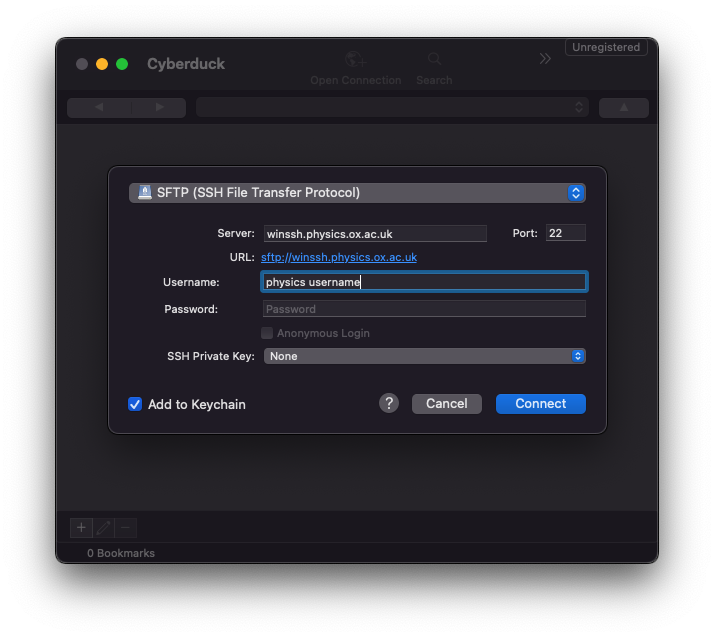
then click "Allow"
You can also scp directly to your home directory on the file servers, open a command prompt and type something like the following:
scp -r /path/to/files/ username@winssh.physics.ox.ac.uk:path/to/files/on/server/
Categories: Apple | Astrophysics | File Sharing | Mac | Services | Theory | dfs | home directories